
If you’ve ever tried to create a custom login page in WooCommerce, you’ve probably come across the WooCommerce login shortcode.
It’s the quickest way to add a login form and customer account area to any page, so most store owners start there.
At first, it works fine. But as soon as you try to change anything, problems start showing up.
Login and registration are tied together, redirects don’t always behave as expected, and even small tweaks can feel harder than they should be.
In this guide, we’ll cover:
- How the WooCommerce login shortcode works
- How to set up a basic login page
- How to customize the login flow when you need more control
- When using a plugin makes the login experience easier for you and your customers
What Is the WooCommerce login shortcode?
WooCommerce doesn’t have a separate login shortcode by default. Instead, it uses one main shortcode to handle login, registration, and account management together.
That shortcode is:
[woocommerce_my_account]
When you add this shortcode to a page, WooCommerce automatically changes what users see based on their login status.
It looks something like this:
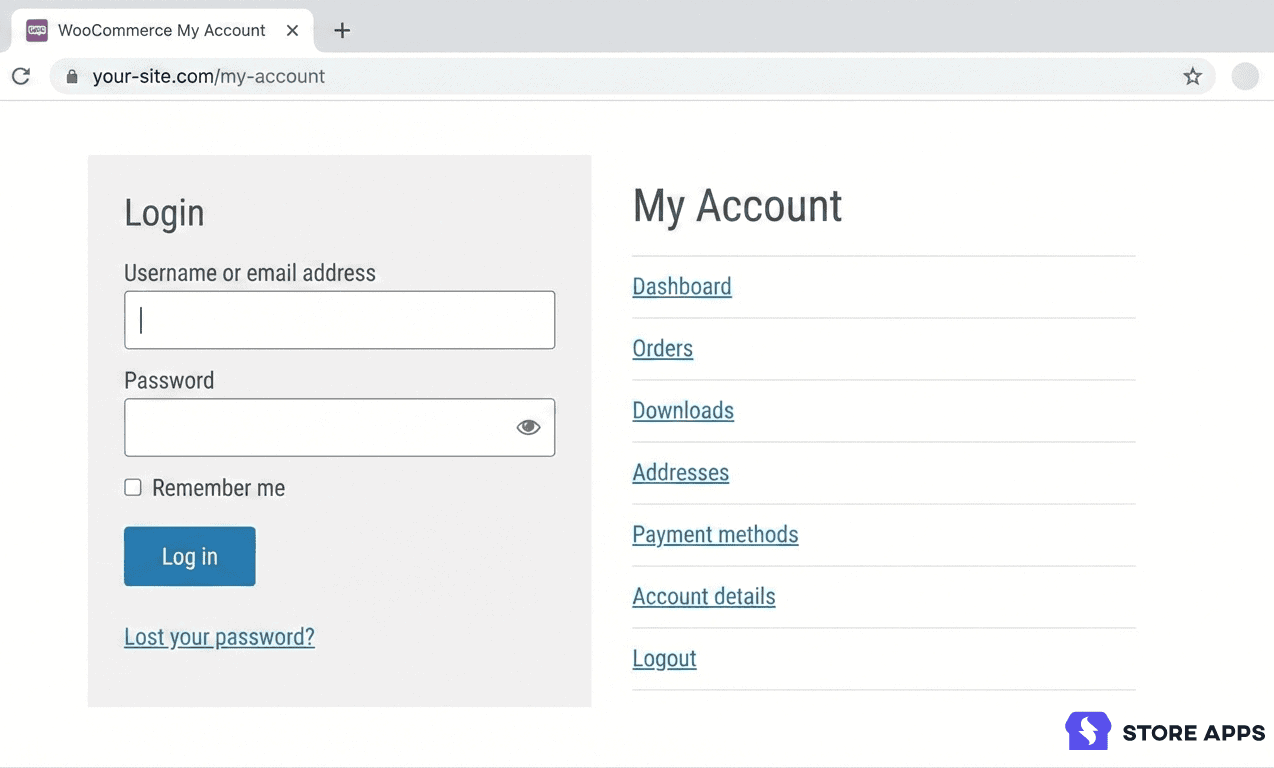
- Logged-out users see a login form (and a registration form, if registration is enabled).
- Logged-in users see their account dashboard, orders, downloads, addresses, and account details.
This is why most WooCommerce stores use the My Account page as their login page.
However, it’s important to understand what this shortcode is designed for and what it isn’t.
How to create a login page using WooCommerce login shortcode?
Everything starts with the My Account shortcode in WooCommerce.
This simple WooCommerce login shortcode [woocommerce_my_account].
This lets you add the entire My Account area to any page on your site.
From this page, customers can:
- Log in to their account
- Register (if enabled)
- View past orders
- Update account details
- Manage addresses and downloads
If you want customers to register from this page, make sure registration is enabled in WooCommerce settings.
Here’s how to create login page:
- Go to your WordPress admin dashboard.
- Navigate to Pages and create a new page (or edit an existing one).
- Click on the + icon to add a new block on the page.
- From the options, look for
Shortcode. - A box will appear. Here you can copy and paste the WooCommerce login shortcode:
[woocommerce_my_account]
Note: This shortcode will display a login form along with user registration and account details.
- Lastly, click the
PublishorUpdatebutton to make the page live on your website.
This way, you have created a login page.
Now follow these steps to set the page as your default login page:
- Go to WooCommerce > Settings > Advanced.
- Under the My account page, select the above page for the My Account option.
Lastly, visit the login page and ensure everything works smoothly.
With these steps, you have created a fully functional login page.
So if you want separate registration, login and Account page, you need to customize the page using WooCommerce login shortcodes.
Advanced customization of WooCommerce login page
The default WooCommerce login setup works well for basic needs.
But some stores need more control, like separate login and registration pages, or better handling for logged-in users.
Below are advanced customization options using custom shortcodes and PHP snippets.
Note: These steps require editing theme files. If you’re not comfortable with code, consider using a plugin instead.
- Registration page: Add the
[sa_woocommerce_registration_form]shortcode to your Register page, once you’ve activated the first snippet below. If the users are logged in, the message will show “You are already registered.” - Login page: For the Login page, use the
[sa_woocommerce_registration_form]shortcode after you activate the second snippet. If the user is logged in, a message will be shown “You are already logged in”. - My account page: Keep the
[woocommerce_my_account]shortcode on your My Account page to display all the user account details. - Redirection after registration: You can also add a redirection after registration so that the customers will be directed to the My Account page once they register (the login form already handles this by default).
- Redirect logged-in users: To prevent errors when logged-in users access the login or registration pages, use the snippet below. This will automatically redirect them to the My Account page.
/**
* Shortcode for WooCommerce User Registration.
*
* @author StoreApps
*/
add_shortcode( 'sa_woocommerce_registration_form', 'storeapps_custom_registration_form' );
function storeapps_custom_registration_form() {
if ( is_user_logged_in() ) {
return 'You are already registered.
';
}
ob_start();
do_action( 'woocommerce_before_customer_login_form' );
$html = wc_get_template_html( 'myaccount/form-login.php' );
$dom = new DOMDocument();
$dom->encoding = 'utf-8';
$dom->loadHTML( utf8_decode( $html ) );
$xpath = new DOMXPath( $dom );
$form = $xpath->query( '//form[contains(@class,"register")]' );
$form = $form->item( 0 );
echo $dom->saveHTML( $form );
return ob_get_clean();
}
/**
* Shortcode for WooCommerce User Login
*
* @author StoreApps
*/
add_shortcode( 'sa_woocommerce_login_form', 'storeapps_custom_login_form' );
function storeapps_custom_login_form() {
if ( is_user_logged_in() ) {
return 'You are already logged in.
';
}
ob_start();
do_action( 'woocommerce_before_customer_login_form' );
woocommerce_login_form( array( 'redirect' => wc_get_page_permalink( 'myaccount' ) ) );
return ob_get_clean();
}
/**
 * Redirect Login/Registration To My Account
 *
 * @author StoreApps
 */
add_action( 'template_redirect', 'storeapps_redirect_to_myaccount_after_logged_in' );
function storeapps_redirect_to_myaccount_after_logged_in() {
	if ( is_page() && is_user_logged_in() && ( has_shortcode( get_the_content(), 'sa_woocommerce_login_form' ) || has_shortcode( get_the_content(), 'sa_woocommerce_registration_form' ) ) ) {
		wp_safe_redirect( wc_get_page_permalink( 'myaccount' ) );
		exit;
	}
}
Note: To get this working, you’ll need to add the snippets to the custom PHP section in your functions.php file and the custom CSS in the style.css file of your main theme.
Code-based customization gives you full control, but it’s not always the easiest or safest option, especially if you don’t want to touch theme files or worry about updates breaking things later.
And before you start thinking:

Let’s look at some plugins that make WooCommerce login much easier to set up and manage, without writing code.
Plugin-based login solutions
Here are some best WooCommerce plugins that can help you customize your login page without getting involved in WooCommerce login shortcodes:
Express Login for WordPress
Login pages work, but sometimes they add unnecessary friction, especially for repeat customers, email campaigns, or temporary users.
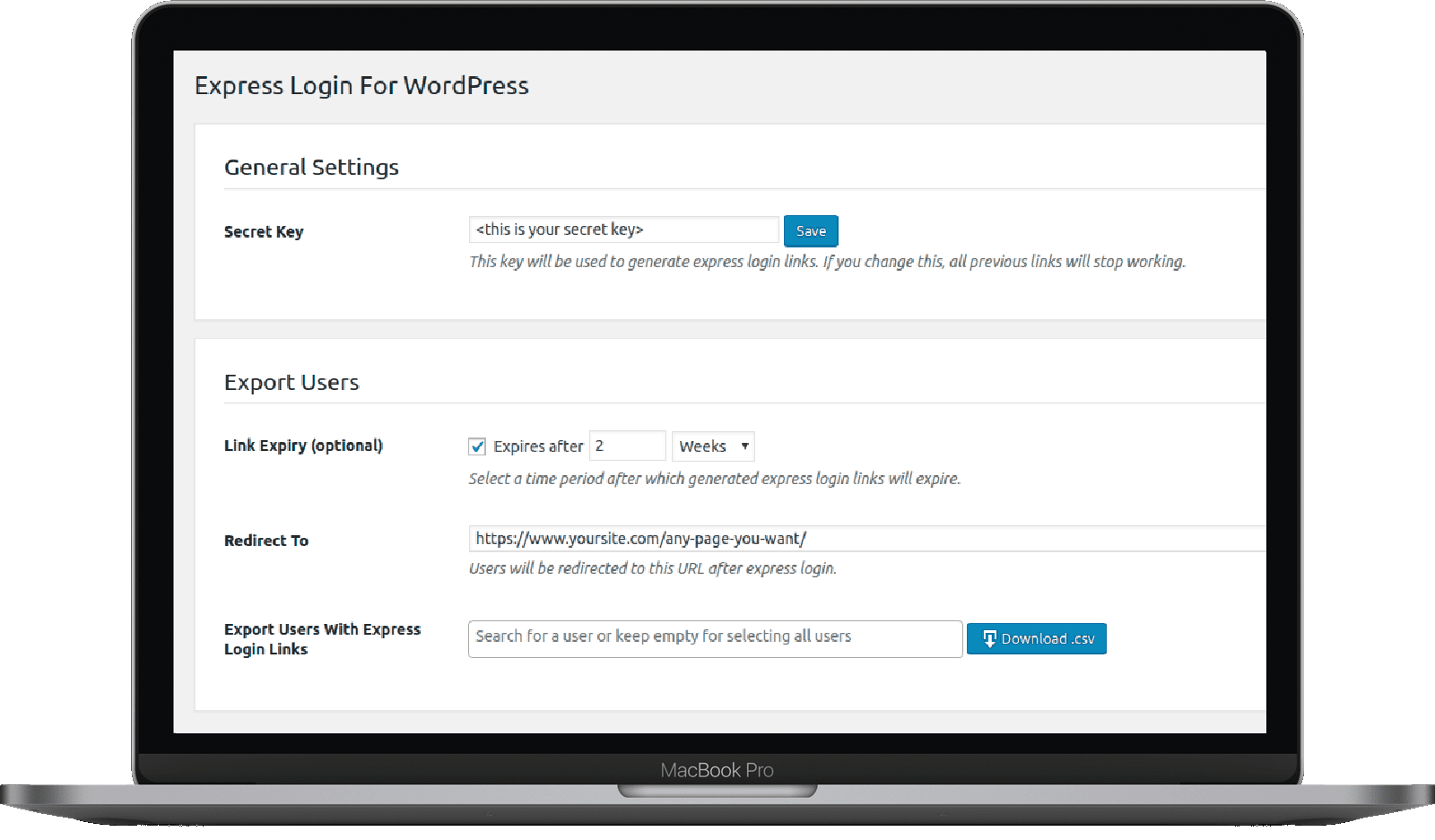
Express Login for WordPresss makes login smarter by allowing users to log in using secure auto-login links.
There’s no need to remember usernames or passwords.
This plugin is useful when you want:
- Faster access for customers and clients
- One-click login from emails
- Temporary or controlled access without sharing credentials
What it helps with:
- Redirect users directly to checkout, cart, account, or hidden pages
- Create self-expiring login links for better security
- Generate and share login links in bulk for email campaigns
- Get started quickly with minimal setup
If reducing login friction is important for your store, Express Login offers a simple and secure way to do that.
Try Express Login for WordPress now
Ultimate Member
Ultimate Member is a good choice if your store needs more than just login.
It allows you to build:
- Custom login and registration forms
- User profiles
- Role-based access for different users
It also includes a drag-and-drop form builder, making it easier to design forms without coding.
This plugin works well for WooCommerce stores that want to build membership sites or online communities.
User Registration
User Registration is a beginner-friendly plugin focused on flexibility and ease of use.
It’s helpful if you want:
- Ready-made login and registration form templates
- Conditional form fields based on user input
- Multi-step registration forms
- Integrations with email tools or CRMs
This plugin suits store owners who want customizable forms without too much complexity.
RegistrationMagic
RegistrationMagic is designed for advanced registration needs.
It’s useful when you want:
- Registration forms with payment options
- Automatic user role assignment
- Detailed form analytics
- Flexible form placement using shortcodes
This plugin is a good fit for stores that need more control over how users register and how data is handled.
Log in ease, log out tension
Login problems don’t look big at first, but they add friction exactly where customers decide whether to stay or leave.
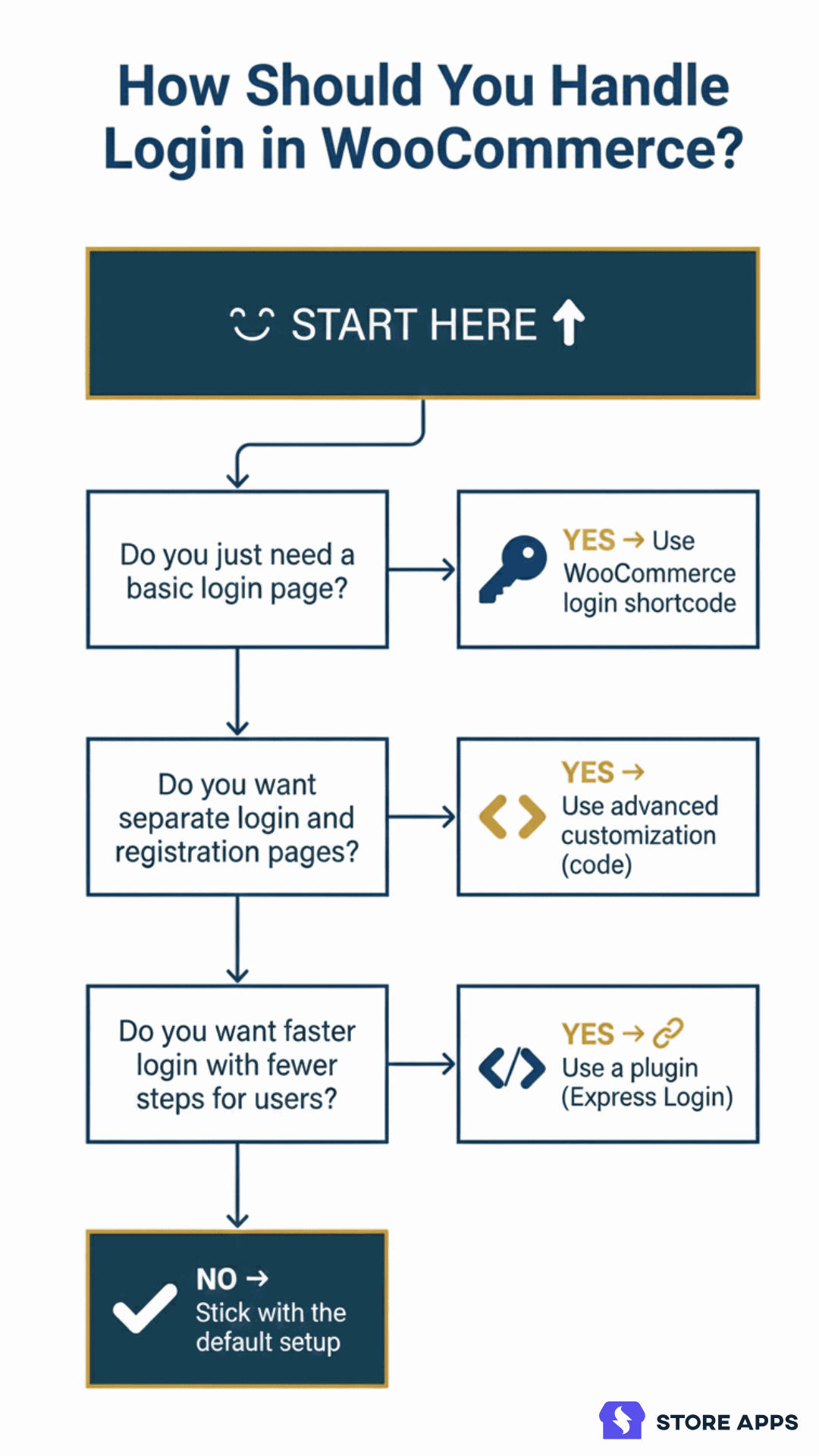
For simple stores, the default WooCommerce login shortcode does the job well. It’s built in, easy to set up, and handles account access without extra effort.
When you need more control, like separate login and registration pages or better redirects, advanced customization can help.
And when login becomes part of the customer journey, such as email campaigns, repeat purchases, or quick access to specific pages, plugin-based and passwordless options can make the experience smoother.
The best setup is the one that removes friction, saves time, and fits how your store actually works today.
Start simple, improve when needed, and let your login flow support your growth, not slow it down.
FAQs
Can I use the WooCommerce login shortcode on multiple pages?
Yes. The [woocommerce_my_account] shortcode can be added to more than one page. WooCommerce will still detect the user’s login status and show the correct content. However, it’s best to keep one primary My Account page set in WooCommerce settings to avoid confusion.
What happens if I remove the WooCommerce My Account page?
Removing or breaking the My Account page can affect login, registration, and account-related features in WooCommerce. Orders, downloads, and address management rely on this page, so it should always remain active.
Will the WooCommerce login shortcode work with page builders?
Yes. The WooCommerce login shortcode works with most page builders like Elementor and the block editor. You can add it using a shortcode block or widget, and WooCommerce will handle the login logic automatically.
Can I let users log in without a username or password in WooCommerce?
WooCommerce doesn’t support passwordless login by default.
If you want users to log in using secure links, without entering usernames or passwords, you’ll need a plugin like Express Login for WordPress.
It allows customers to access their account, checkout, or other pages instantly through secure, time-limited login links.

About the Author – Deeksha Paswan
WooCommerce writer with 5+ years covering everything store owners actually deal with — products, inventory, offers, affiliates, and repeat sales. She turns complex plugin functionality into clear, actionable guidance that saves time and grows revenue. Off the clock, she’s either nurturing her garden or deep into an anime series.